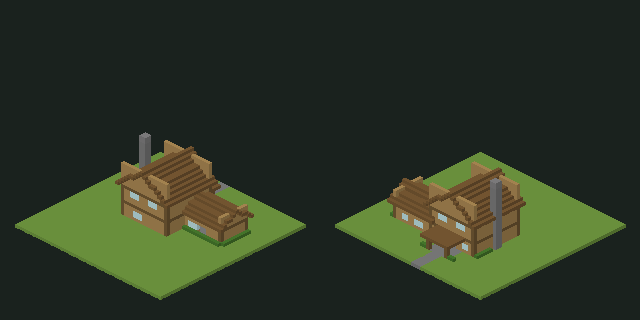
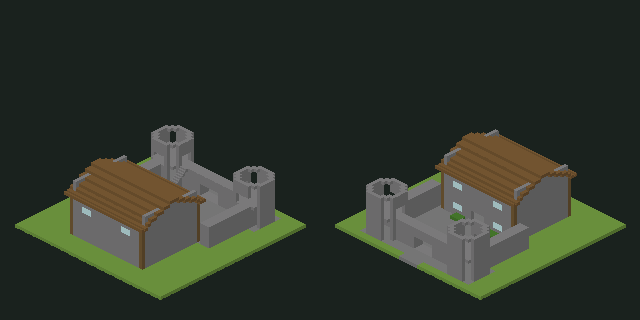
Compare the silhouette with your idea
Start with the shape of a house, the layout of a courtyard or the outline of a statue. Review a block-built draft before deciding which details to develop in Minecraft.
Turn a text prompt or reference image into a Minecraft house, castle or sculpture. Inspect the actual blocks in 3D and layer views, then export a compatible Java or Bedrock structure file.
See actual house and castle generation runs with their prompts, 3D block grids, downloadable structure files and documented test limits.
Turn a text prompt or reference image into a Minecraft structure you can inspect in 3D. Choose House for a home, Castle for a fortified build, or Sculpture for a statue. Your result includes block layers, material counts and downloadable structure files.
Start with the shape of a house, the layout of a courtyard or the outline of a statue. Review a block-built draft before deciding which details to develop in Minecraft.
Look beneath the roof with cutaway and layer views to inspect rooms, doorways and stairs. House and castle results also show access checks for the locations included in the plan.
Follow the layers and material counts when building by hand, or export a structure for a compatible import tool. Choose the approach that fits your world and how you like to build.
Try a compact cottage with a stone base, timber walls and a pitched roof. Specify the number of floors and ask for stairs to the upper room.
Describe stone walls, corner towers, a front gate and an open courtyard. Keep the layout compact enough for your chosen plot.
Choose Sculpture for a chunky robot, seated animal or monument. Clear silhouettes work better than thin limbs and tiny details.
Choose House, Castle or Sculpture and set the plot size and materials. Describe the shape, layout and key details, add a reference image if you have one, then check the generation option before submitting.
Rotate the 3D build and use cutaway or layer view to examine the interior. Review material counts and planned-location access checks for houses and castles. If a detail needs work, describe a change and keep the earlier version available.
Choose .schem for WorldEdit, .litematic for Litematica or .mcstructure for a compatible Bedrock workflow. You can also follow the layers by hand. Unlocking a free preview for download costs 40 credits.
Use the preview to decide whether a design fits your world. A Survival player may follow layers and material counts; a Creative player may import a structure and continue building around it.
Use the structure in an existing world or follow its layers to build by hand. For Java Edition, choose .schem for WorldEdit, .litematic for Litematica, or .schematic for a compatible legacy importer. For Bedrock Edition, choose .mcstructure and check that your device and import tools support it. Try the file in a test world first.
Download the sample statue schematicThis is a statue sample, not a house. File decoding has been checked; in-game import testing is still pending.Describe the house style, floors, main materials and how rooms connect. For example: “A two-story medieval wooden house with a stone base, spruce roof, chimney and stairs to the upper room.” Choose House and select the main blocks you want to use.
For a small wooden house schematic, give rooms and stairs more priority than tiny decorations. Use the cutaway to inspect the interior, and add beds, chests and workstations yourself in game.
Use the Minecraft castle generator for a compact layout with an entrance gate, stone walls, towers and a courtyard. Specify which tower or upper room needs a stair connection instead of asking for many disconnected buildings.
Try: “A small stone castle with four corner towers, an open courtyard and stairs to one tower platform.” Inspect the gate, courtyard and tower connection in the layer view, then review the access results before exporting your castle schematic.
When you know the style but not the layout, start with one house or a compact castle. Compare the roof, footprint and rooms with your idea before adding smaller details.
When you have a photo or sketch to work from, name the features you want to keep, such as a pitched roof or a stone tower. The image guides a new design; it does not produce an exact copy of the building.
Before collecting blocks for a Survival project, review the material counts and layers. Decide whether the footprint fits your site and which parts you want to change as you build.
Open the layer-by-layer blueprint to inspect one level at a time. Check the material list before gathering blocks for a survival build. You can also download a .litematic file for a compatible Litematica setup.
Use the layer view to locate walls, openings and stairs as you work upward. The blueprint is available in the browser; it is not a downloadable PDF or an automatic in-game builder.
We publish reviews only when the creator has agreed and the feedback can be tied to a real build.
No verified player review is available yet. The house, castle and statue examples above show actual blocks, prompts and files you can inspect.
What you can verify now
Open a house, castle or statue card to rotate its exported block grid. The picture is a preview of that grid, not an in-game screenshot.
Use cutaway and layer views to review rooms, doorways and stairs. Planned-location access checks do not guarantee every path in Minecraft.
The public examples include structure files for supported Java and Bedrock workflows. Test a downloaded file in a spare world.
Save the changes you want to try
Record a roof, room or material change for your next version or in-game edit. Download the note to keep it with your project; it does not change the build automatically.
Sign in for one free 32-block preview per UTC day, subject to daily site capacity. Downloading or publishing that preview costs 40 credits. A paid build also costs 40 credits. Failed previews still count toward the daily allowance but do not charge credits.
Yes. Upload a building photo or sketch, then describe the roof, materials or layout you want to keep. Choose House or Castle for architecture. The image guides a new 3D structure, so details and proportions may differ from the reference.
Choose House for a home with rooms and floor connections, or Castle for walls, towers and a courtyard. Choose Sculpture for a character, animal or decorative object. Use the architecture modes when an interior layout matters to your project.
Houses and castles fit inside a plot of the selected size on each axis. For sculptures, the number sets the longest side; the other dimensions follow the model proportions. Free previews use 32 blocks.
You do not need a Minecraft mod to generate or preview it in the browser. Importing requires a compatible tool or workflow, such as WorldEdit for .schem or Litematica for .litematic. Bedrock .mcstructure support depends on your platform and import setup.
The download contains one structure in .schem, .litematic, .schematic or .mcstructure format. Use a compatible tool to place it in your world. Complete Java world folders and Bedrock .mcworld files are not included.
This tool generates individual structures from text or images. It does not read an address, map selection or geographic data to recreate streets and terrain. Use a photo as a reference for one house or building instead.
You can inspect layers and material counts in the browser to plan a manual build. A compatible Litematica setup can display a downloaded .litematic as an in-game guide. You still need to collect materials and place the blocks yourself.
No. House and castle generation checks headroom and paths from the entrance to locations listed in the plan. These checks do not cover every interior space or all Minecraft movement rules. Inspect the stairs and rooms in the preview, then test them in your game version.
You can rotate, zoom and inspect layers in the browser. Describe a change to generate a new version of the selected build, then return to an earlier version if needed. Directly painting individual building blocks in the browser is not available.
The preview shows the exported blocks and supported stair directions, using approximate textures. Minecraft lighting, resource packs and game versions can affect how those materials look. Check the result in the world where you plan to use it.
Credits reserved for a paid build are returned when the job is confirmed as failed. If the service cannot confirm whether generation started, the task is held for review to avoid starting and charging for the same request twice.
Start with one clear building idea
Describe a house, a compact castle or a statue, then inspect the blocks before choosing a file.